👥 Multiple Instances
🚀 Enable Multiple Instances
When you need to grab orders from multiple websites or accounts simultaneously, the multiple-instance feature is essential.
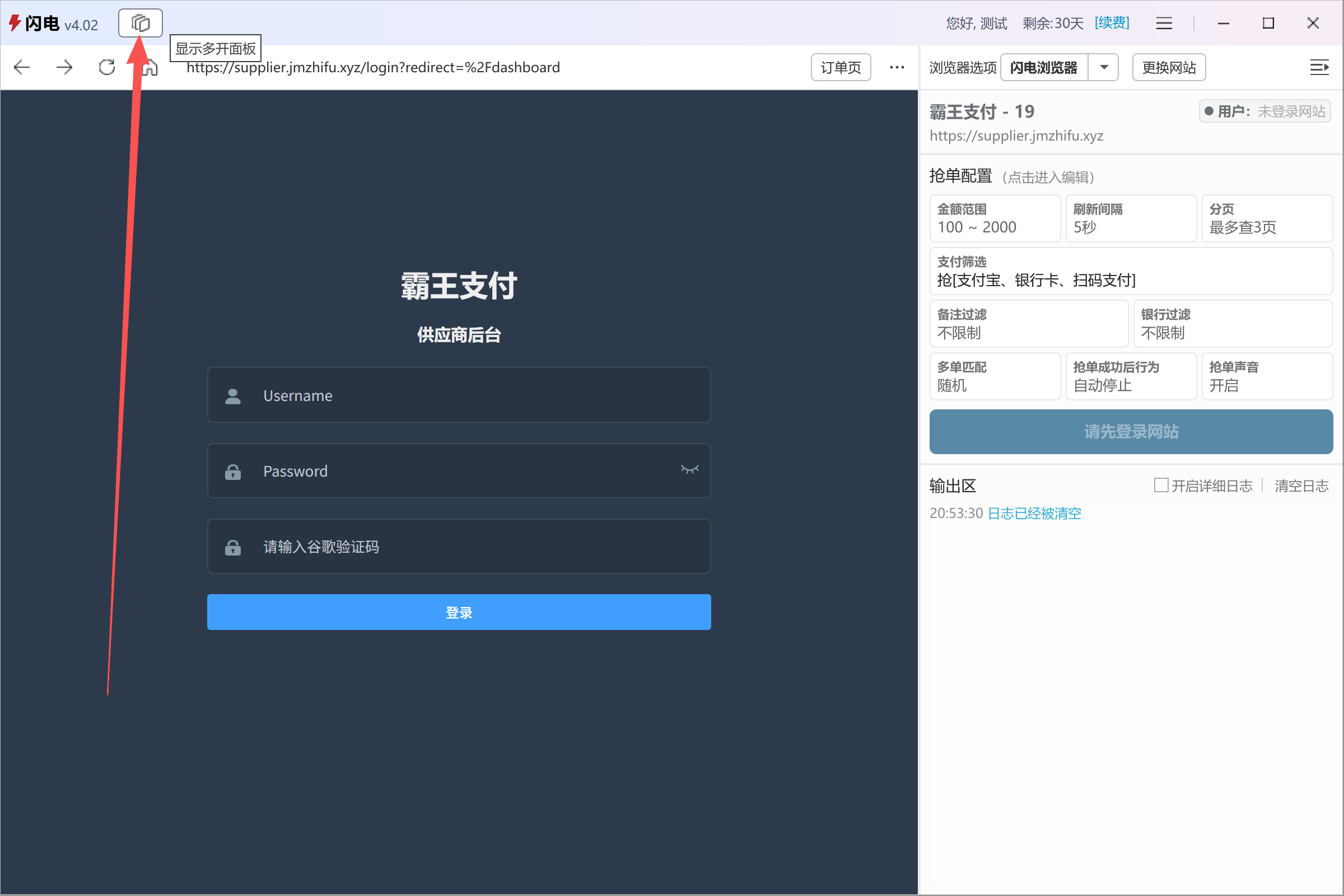
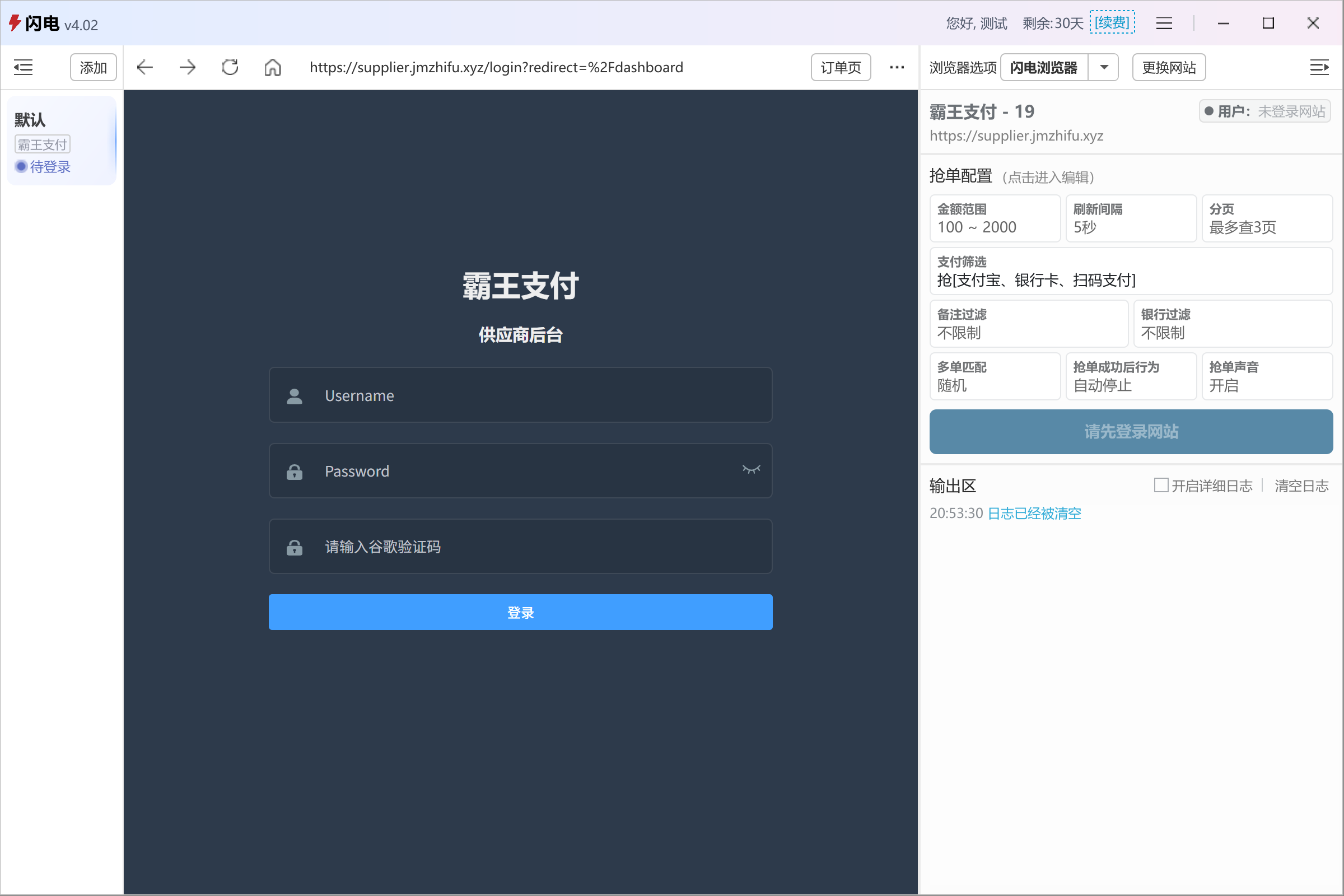
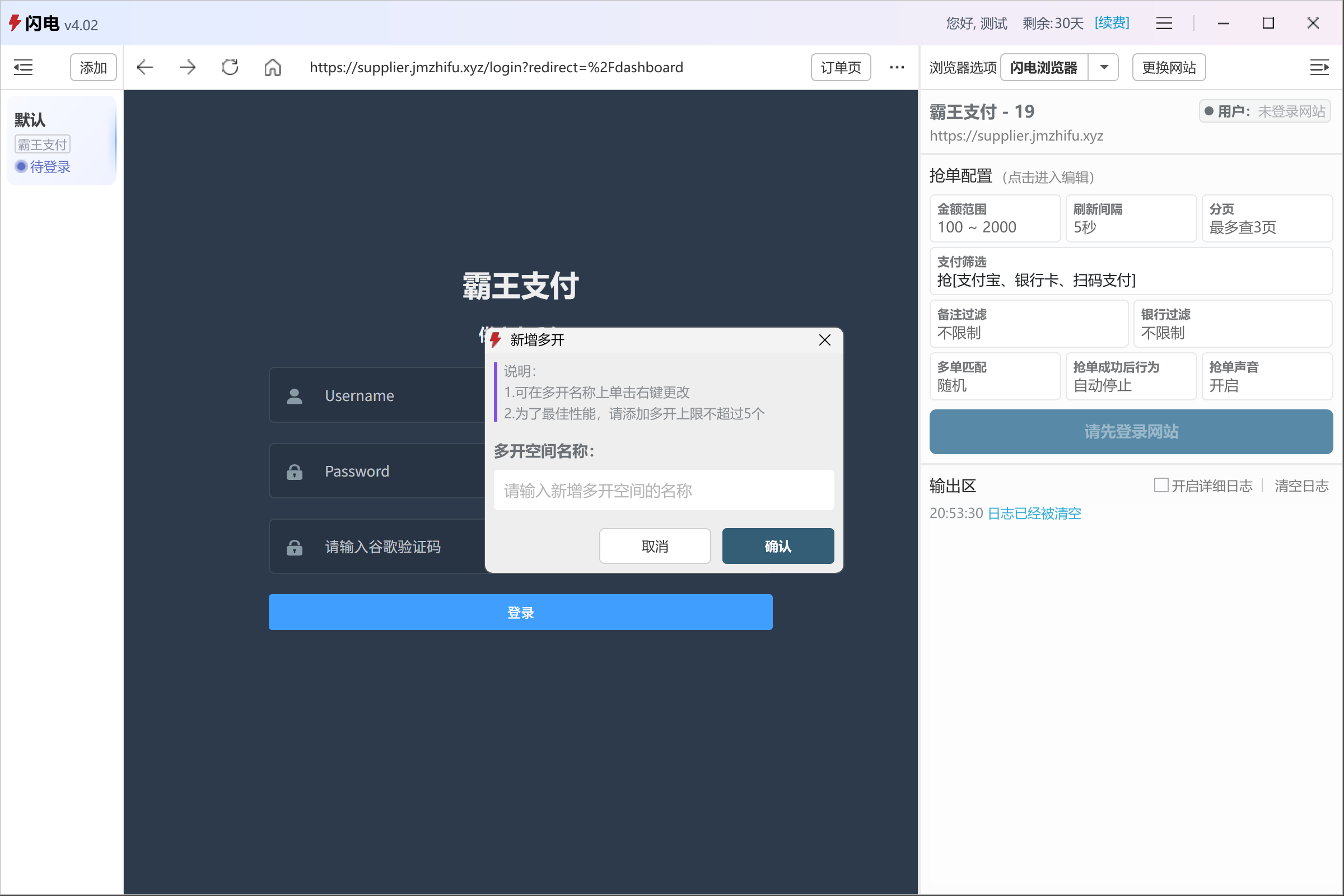
Click the Multiple Instance icon next to the version number in the top-left corner (Image 1) to open the manager (Image 2).
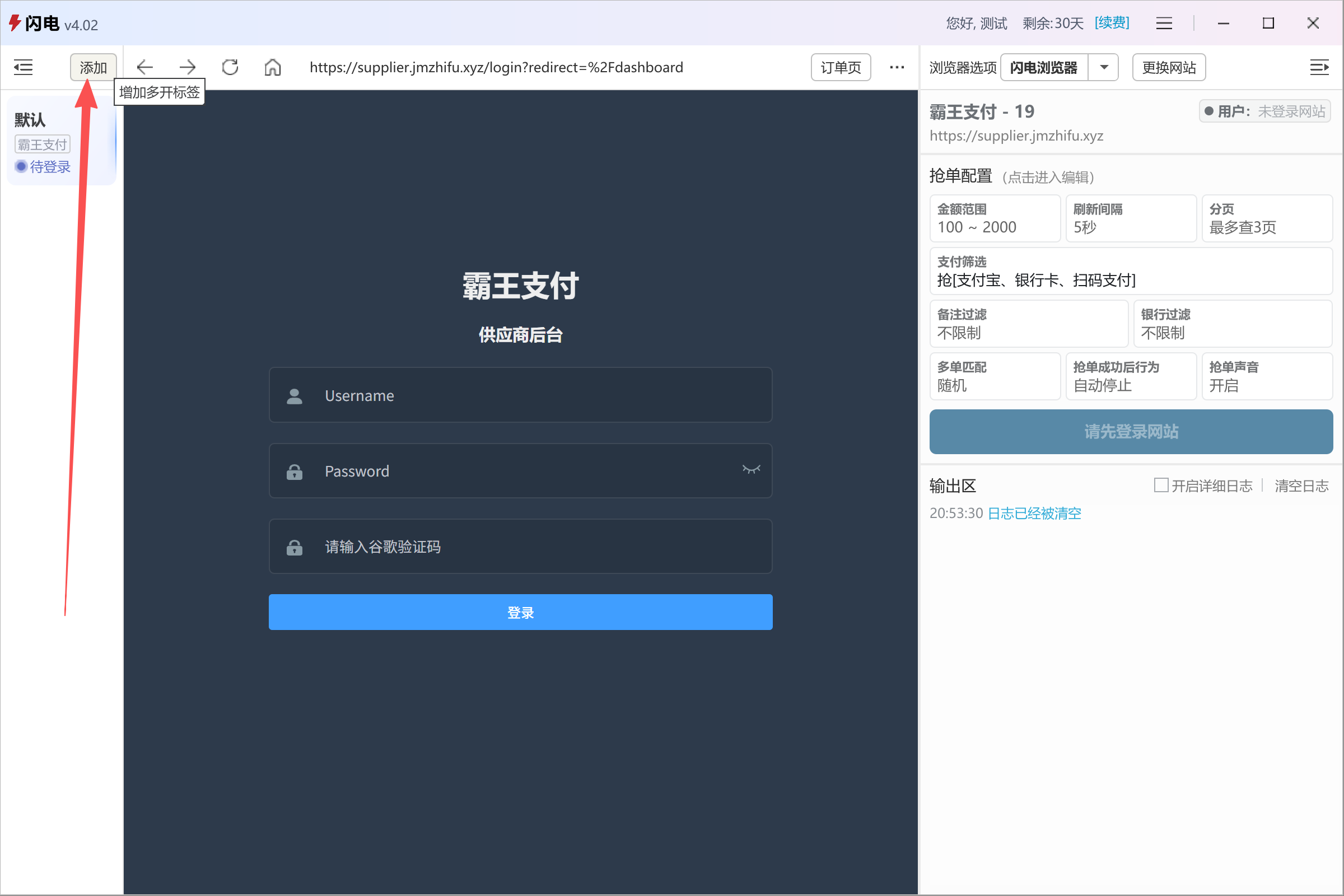
Click Add (Image 3), enter a name, and a new instance will be created (Image 4).
👉 For usage instructions, see: Quick Start
💡 Tip
Use descriptive instance names (site name or account identifier) for easier management.
⚙️ Advanced Instance Actions
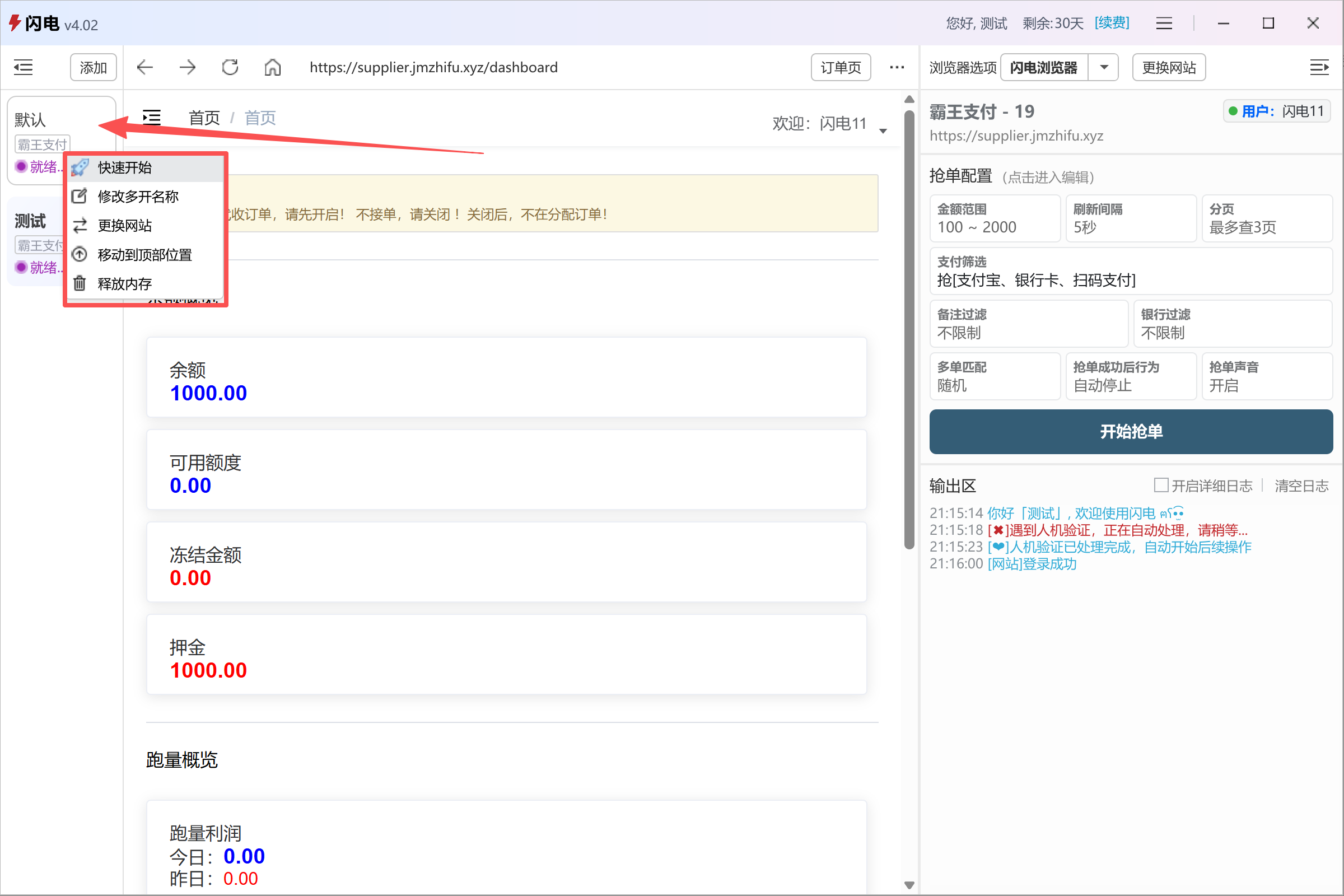
Right-click any instance in the list to access advanced actions (Image 5), including:
- Quick Start
- Rename instance
- Change website
- Pin to top
- Release memory
⚠️ Notes
- Quick Start requires the instance to be logged in
- Avoid running too many instances at once to prevent performance issues